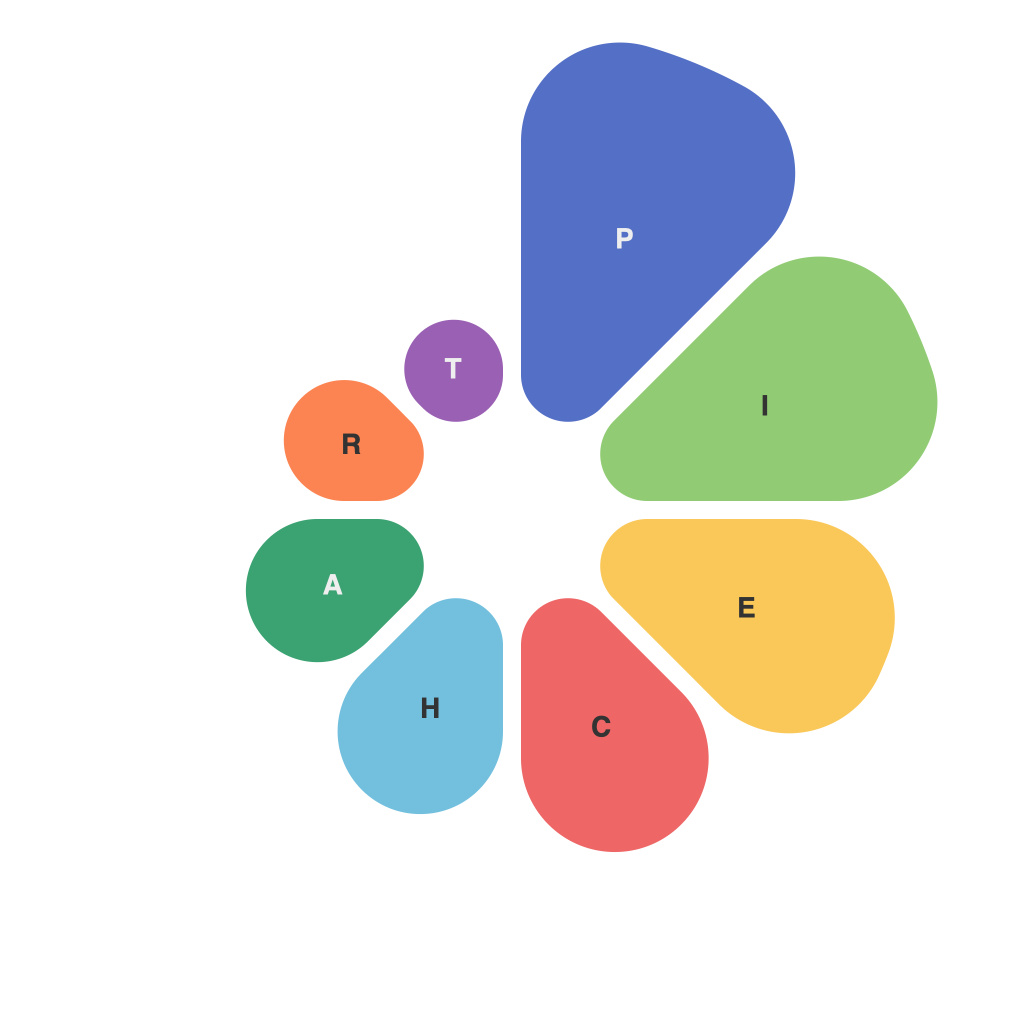
In the vast world of data visualization, pie charts stand as a staple, offering a simple and intuitive way to represent proportions and percentages. However, crafting the perfect pie chart is no easy feat, requiring a mindful combination of design, layout, and functionality. Enter PieChartMaster, a comprehensive tool designed to simplify the process of creating top-grade pie charts. This guide will arm you with the knowledge and skills to master the pie, using PieChartMaster to its full potential.
The Art of Visualization: Why PieCharts?
Pie charts have been a part of our data storytelling narrative for generations. They are perfect for highlighting a single data point in relation to the whole, making them ideal when comparing parts of a whole and showing how the parts add up to the whole. While other chart types like bars and lines may be better suited for some datasets, pie charts possess an immediate simplicity and appeal that cannot be overlooked.
The foundation of a great pie chart starts with PieChartMaster’s powerful features and intuitive interface. Here are the key elements to consider when using this tool:
Selecting the Right Data
Creating a perfect pie chart begins with selecting the appropriate data. Use data that is qualitative and discrete; continuous, quantitative data may lead to unrealistic representations, as it is difficult to divide it into equal slices without looking odd.
PieChartMaster allows you to import data from various sources, ensuring that you can quickly populate your chart with accurate information. Once the data is in, it’s time to think about how you want to represent the slices.
Choosing the Slices
The visual distribution of slices is crucial to conveying the message of your pie chart. Here are some tips on managing slices within PieChartMaster:
1. **Sequence Matters**: Arrange your data slices from largest to smallest (or vice versa). This hierarchy quickly communicates relative importance and avoids clutter.
2. **Slice Names**: Make sure your slices are clearly labeled and legible. PieChartMaster lets you customize these easily.
3. **Transparent or Solid**: Use transparency for slices to help them blend into each other, particularly if you have many small slices. Transparency also helps to highlight the larger slices.
4. **Order of Appearance**: You can control how slices are ordered in PieChartMaster. This control ensures that the largest slice is featured prominently for immediate recognition.
Enhancing the Appearance
Aesthetics play a significant role in pie chart usability. Here are some ways to enhance the look of your pie chart using PieChartMaster:
– **Color Palette**: Select a color palette that is visually appealing yet conveys meaning. PieChartMaster offers a variety of themes and palettes to choose from.
– **Animations**: Adding animations can make the pie chart interactive and engaging. Use these sparingly to avoid overcomplicating the chart.
Optimizing the Layout
A well-structured pie chart communicates information more effectively. Follow these PieChartMaster guidelines for optimizing layout:
1. **Center Your Chart**: Center the pie where it doesn’t compete with other elements or content in your presentation or publication.
2. **Titles and Descriptions**: Add descriptive and informative titles. This improves the pie chart’s utility and can help the audience understand it more quickly.
3. **Legends**: Use a pie legend if needed but keep it legible and uncluttered. Again, PieChartMaster provides tools to customize and place the legend where it complements your chart.
4. **Size Considerations**: The size of your pie chart should not be too large or too small. It’s usually best to use a pie chart within a webpage or document where it can receive appropriate attention without overwhelming the viewer or the entire design.
Leveraging Advanced Options
PieChartMaster has advanced features that can take your pie chart to the next level, including:
– **Interactivity**: Add interactive elements like tooltips or clickable elements to allow viewers to delve further into the data.
– **3D and 2D Effects**: Choose between 3D or 2D effects to give your pie chart a dynamic look. However, use these responsibly so that the data remains readable.
– **Conditional Scaling**: With some datasets, it might be useful to use conditional scaling that changes the pie chart based on user interactions or other conditions.
In a Nutshell
Mastering the pie is about balance: balancing the data, the design, and the reader’s perception. With PieChartMaster, achieving balance is made simpler, while still offering the control and precision necessary for effective data visualization. Whether you are a seasoned data analyst or a data visualization enthusiast, PieChartMaster equips you with the tools to craft perfect pie charts that not only delight the eye but also communicate complex ideas with ease.