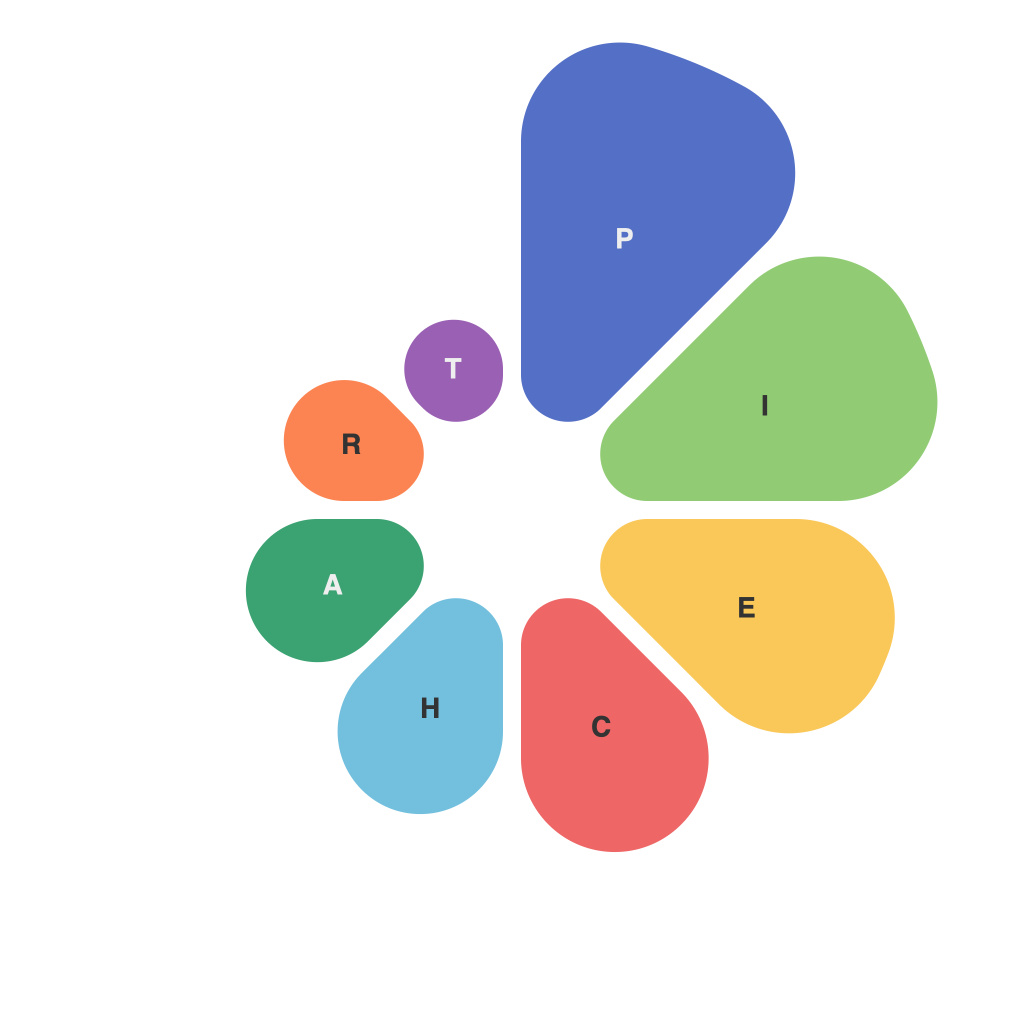
In the era of data-driven decision-making, mastering the art of data visualization is paramount for professionals seeking to communicate complex information with clarity and impact. Among the myriad of tools available for crafting visual representations of numerical data, PieChartMaster stands out as a beacon of precision and elegance. This guide is designed to provide a comprehensive overview of PieChartMaster, equipping users with the knowledge and skills needed to harness its capabilities and achieve data visualization success.
Understanding Data Visualization
Before diving into the specifics of PieChartMaster, it is essential to understand the broader concept of data visualization. At its core, data visualization is the process of representing data graphically, making it easier to understand and interpret. Visualizations can offer insights that traditional tables and spreadsheets may obscure, enhancing both analytical thinking and decision-making processes.
Choosing the Right Tool: Introduction to PieChartMaster
PieChartMaster is a specialized tool dedicated to creating high-quality pie charts, a common yet powerful method for showing proportions within a whole. Known for its intuitive interface and robust features, PieChartMaster allows users to seamlessly transform raw data into compelling and informative visual narratives.
Key Features of PieChartMaster
1. Data Integration
PieChartMaster supports a variety of data formats, from CSV and Excel to SQL databases, making data integration straightforward. With a focus on data integrity, the tool ensures that imported data is accurate and complete.
2. Customization
The tool boasts an extensive range of customization options, allowing users to modify pie chart appearance, from color schemes to transparency levels. Whether it’s creating a sophisticated corporate pie chart or a whimsical educational tool, PieChartMaster caters to diverse visualization needs.
3. Interactivity
Interactive pie charts can engage viewers and invite exploration. PieChartMaster provides tools for adding clickable elements, tooltips, and even animations, enhancing the user experience and message retention.
4. Export and Sharing
PieChartMaster enables quick export of pie charts in various formats, including common image formats such as PNG and JPEG. These charts can then be easily shared across platforms, from presentations to webpages.
Navigating the Interface
One of the first steps in your PieChartMaster adventure is familiarizing yourself with the user interface. The dashboard is designed to be intuitive and accessible, with logical grouping of features and tools. Here’s a brief tour:
1. Data Import: Use this section to upload or import your data using the format you have.
2. Chart Editor: Once your data is loaded, you’ll enter the chart editor where you can customize aspects such as size, color, and labels. Experiment with different configurations until you achieve the desired impact.
3. Filter and Sort: To manage your data efficiently, PieChartMaster allows you to filter and sort your data before visualization, ensuring relevance and clarity.
4. Export and Export Settings: When you’re satisfied with your pie chart, finalize your project by exporting it in the preferred format through the export settings panel.
Creating Your First Pie Chart
Ready to start creating with PieChartMaster? Here are the basics:
1. Load your data into the tool and set up your initial chart type (in this case, a pie chart).
2. Customize your chart’s dimensions and appearance, including the font styles and overall aesthetics.
3. Input your data and configure the segments and their corresponding labels.
4. Add interactive elements and annotations to make your chart more engaging.
5. Save your work or, when satisfied, export your pie chart to the desired format.
Best Practices for Data Visualization with PieChartMaster
– Always aim for simplicity: A pie chart should tell a clear story in a glance. Avoid cluttering it with too much information.
– Use color wisely: Differentiate segments effectively while ensuring they do not clash or cause visual fatigue.
– Tell a story with your data: While pie charts are excellent for showing proportions, they are not suitable for comparing across time or between groups.
– Keep your audience in mind: Design your charts to resonate with the intended audience, whether it’s a technical or layman’s perspective.
Conclusion
PieChartMaster stands ready to support your journey in data visualization. By harnessing its precision and elegance, you can bring your data to life more effectively than ever before. Follow this comprehensive guide to navigate the tool competently and start creating insightful, engaging pie charts that leave a lasting impression. Whether you are an experienced data visualization pro or an eager novice, PieChartMaster elevates your analytical storytelling capabilities to new heights.