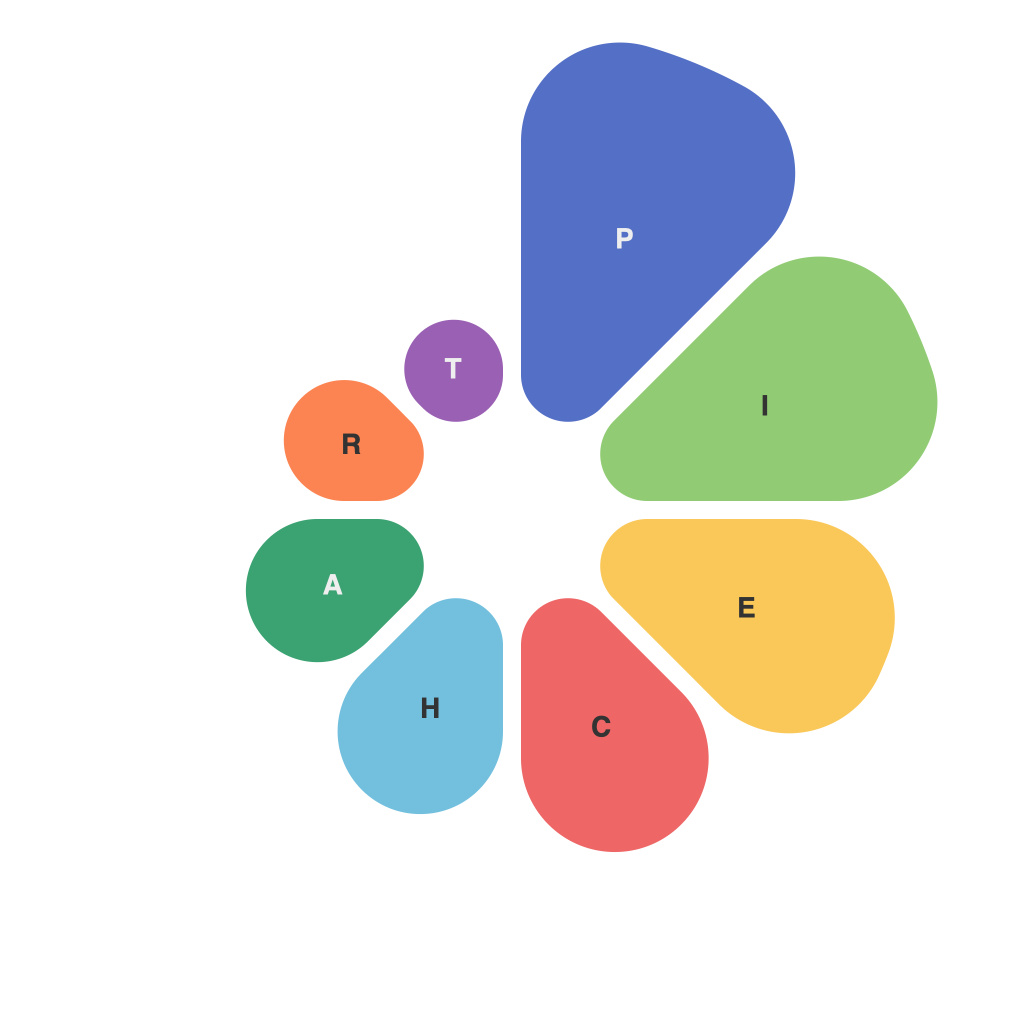
Mastering Data Visualization: An In-depth Guide to PieChartMaster – Enhancing Your Understanding of Component Contributions
In a world saturated with data at every turn, the ability to visualize that data effectively becomes an incredibly valuable skill. One such tool that has achieved great popularity for its ability to showcase data distributions clearly and visually is PieChartMaster. This article aims to provide an in-depth guide on how to master PieChartMaster, enhancing your understanding of component contributions through pie charts.
**Understanding PieCharts in General**
Before delving too deeply into PieChartMaster, it’s insightful to review pie charts more broadly. A pie chart serves as an excellent tool to show proportions of a whole. Each slice, or “pie,” represents the contribution of a specific category within a data set. It’s particularly useful for data sets with 3-10 categories since it helps in visualizing these components in a straightforward and intuitive manner.
**Core Elements of PieChartMaster**
PieChartMaster is a specialized visualizing tool aimed at providing a sophisticated platform for creating, customizing, and interpreting pie charts. It has both a traditional interface and a more modern, user-friendly dashboard. Utilizing this platform, users can input various data sets and visualize them through pie charts, enhancing the understanding of proportions in complex data sets.
**Creating PieCharts in PieChartMaster**
PieChartMaster offers several steps for creating comprehensive pie charts:
1. **Data Input**: You begin by uploading or manually entering your data. These data entries should include the labels (or categories) and the corresponding values or percentages they should occupy on the pie chart.
2. **Customization**: The real power in PieChartMaster is its customization options. Users can adjust the color schemes, add labels for the values or percentages, and modify other aesthetic elements to ensure the pie chart is both visually appealing and informative.
3. **Interactivity**: PieChartMaster also provides interactive elements, where hovering over a specific slice of the pie lets viewers see the exact value or percentage represented by that slice, enhancing the understanding and engagement with the visual presentation.
**Advanced Features of PieChartMaster**
Aside from fundamental chart creation, PieChartMaster includes advanced features such as comparative pie charts, which allow for the display of multiple pie charts side by side for direct comparison. Additionally, you can sort slices by value or by alphabetical order, adding another layer of complexity and detail to your data visualizations.
**Data Interpretation with PieChartMaster**
Once your pie chart is created and customized, interpreting the data becomes the final step. PieChartMaster assists users in identifying the largest and smallest components, highlighting any significant changes in proportions compared to previous versions (when data is comparable over time), and understanding the distribution of components at a glance.
Utilizing PieChartMaster effectively requires not only technical knowledge but also a strategic approach to data visualization. By following the steps outlined in this guide and leveraging PieChartMaster’s capabilities, you can master the art of using pie charts to effectively communicate complex data distributions. Remember, the key to effective data visualization with PieChartMaster is not only in presenting the correct distribution but also in doing so in a way that is simple, clear, and engaging for your audience.