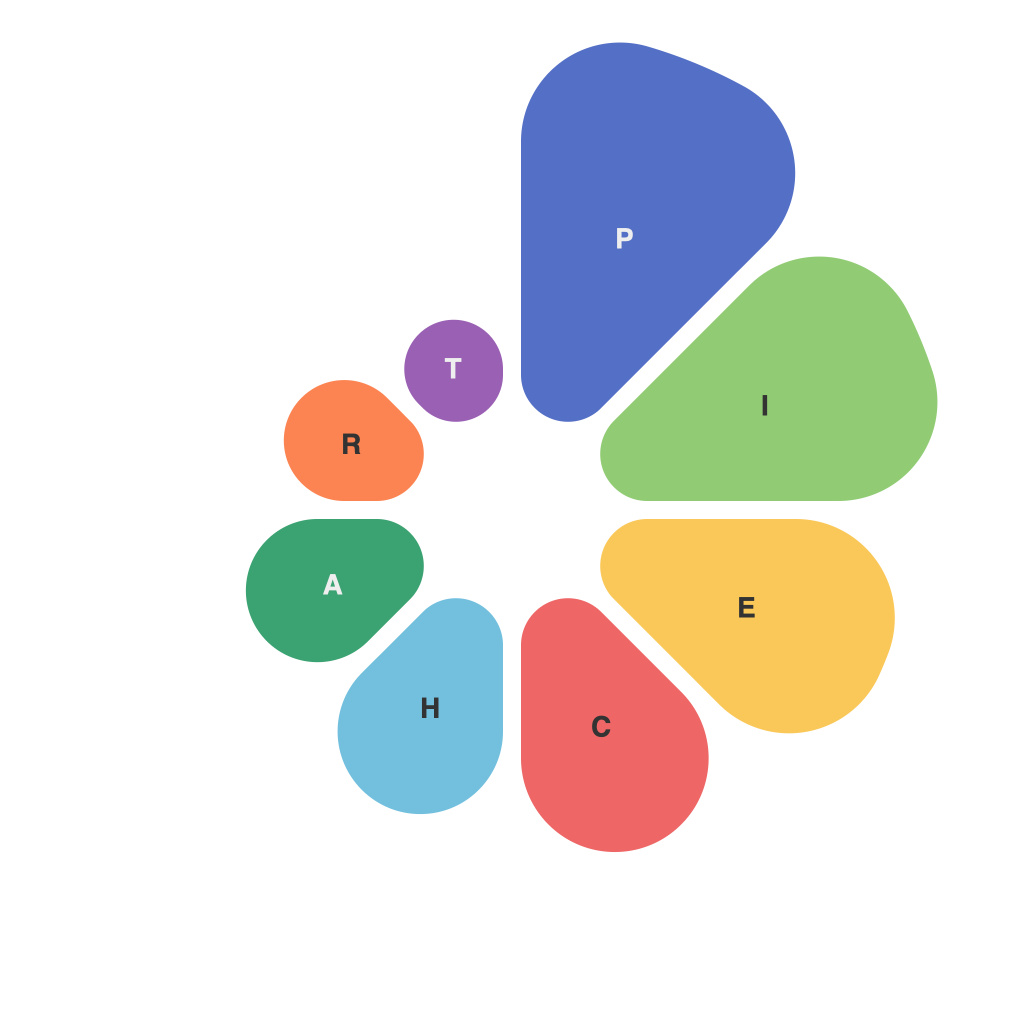
Unleashing Insights with PieChartMaster: A Comprehensive Guide to Mastering Data Visualization with Pie Charts
The world today is data-driven, and as the amount of information available increases, so does the need for efficient ways to process, understand, and convey it. Among the various techniques used for data visualization, pie charts stand as a powerful and accessible tool for representing data in a comprehensible manner. They are particularly effective in displaying proportions in a dataset, where each slice of the pie represents a slice of the whole, making it easier to compare sizes and sizes-to-whole relationships.
Introducing PieChartMaster, an innovative data visualization tool designed to assist users in creating insightful and presentable pie charts from their data. This comprehensive guide aims to introduce you to the versatility and ease of use of PieChartMaster, highlighting its key features and providing step-by-step instructions to help you harness the full potential of this tool for data visualization.
Step 1: Dataset Preparation
Before you can begin to visualize your data, it’s crucial to prepare your dataset. Generally, your dataset should contain two main components: the categories (slices of the pie) and their corresponding data points (the size of each slice). PieChartMaster supports various data import formats, allowing for seamless integration from virtually any spreadsheet tool such as Microsoft Excel, Google Sheets, or even CSV files.
Step 2: Understanding Key Features
PieChartMaster boasts a range of features to customize your visualization and make your data more meaningful to audiences. Key features include the ability to customize colors, labels, legends, and even choose between different layout options to ensure your pie chart is visually appealing without compromising on clarity.
Step 3: Creating Your Pie Chart
The process begins in the ‘Create’ section of the PieChartMaster interface, where you upload your dataset. Here, you will need to specify the category and the data point for each slice of your pie. As your data is uploaded, PieChartMaster does the heavy lifting of calculating slice sizes based on the proportions in your dataset.
Step 4: Customization
From the customization hub, you can delve deep into personalizing every aspect of your pie chart. This is where PieChartMaster truly shines, offering robust options to tailor your visualization. You can adjust the colors for each slice, use custom labels to include more descriptive values, and even change the legend layout to suit your presentation needs.
Step 5: Final Touches
Once you’ve customized your pie chart to your liking, it’s time to finalize and prepare for presentation. Here you can review your chart for accuracy and aesthetic balance, making sure each component works cohesively with the entire dataset. You can also adjust other settings like fonts and text sizes for better readability.
Step 6: Sharing Your Insights
Perhaps the most critical phase – sharing your insights. Once your pie chart is complete and polished, exporting it to your preferred format is possible. PieChartMaster facilitates easy export options, including PNG, JPEG, SVG, and even embedding directly into web pages or PowerPoint decks.
Conclusion
PieChartMaster simplifies the complex world of data visualization, empowering users to effectively communicate their messages through pie charts. This comprehensive guide provided a step-by-step walkthrough of the versatile tool’s capabilities, showcasing its ease of use and high customization options. Whether you’re a beginner looking to grasp the basics or a professional aiming to streamline your data presentation process, PieChartMaster is the solution to unleash your data’s insights with powerful visual analytics.