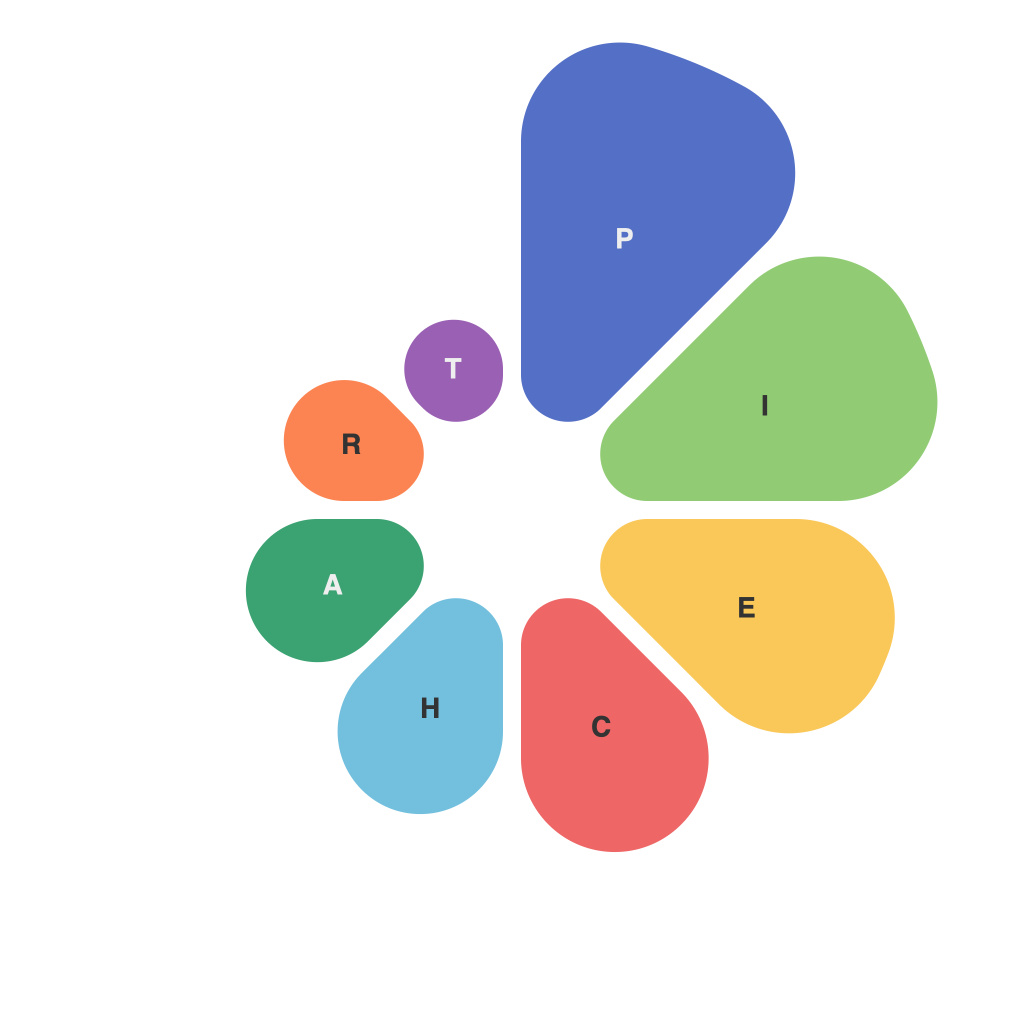
Mastering Data Visualization: The Ultimate Guide to Creating Compelling Pie Charts with PieChartMaster
Data visualization involves creatively presenting complex data in an understandable format that conveys insights and informs decision-making. Among the various types of charts and graphs, pie charts stand out as effective tools for representing proportions and percentages of different categories within a whole. A clear and beautifully designed pie chart can make the difference between an average presentation and a compelling, eye-catching one. If you wish to enhance your chart-making skills, PieChartMaster is the perfect solution for you. An all-in-one software designed by experts to facilitate the creation and customization of pie charts, it offers a user-friendly interface and a wealth of advanced features. This article will guide you through using PieChartMaster to create compelling pie charts.
### Step 1: Accessing PieChartMaster
Your journey to mastering pie charts begins with choosing the right tool. PieChartMaster, available online, is known for its intuitive design and comprehensive features, catering to both beginners and advanced users. For quick access without installation, try PieChartMasterOnline, which offers the same functionality in the cloud. Whether you’re creating charts for presentations, reports, or websites, you can count on PieChartMaster to provide high-quality results.
### Step 2: Designing the Chart
Once you launch PieChartMaster (or PieChartMasterOnline), you’ll be greeted with a straightforward interface. Begin by inputting your data. PieChartMaster supports various ways of feeding data, including CSV files, input in a text box, or direct copy and paste from Excel. Make sure to format your data correctly, with one row for each data series and categories in the first column.
### Step 3: Customizing Your Pie Chart
After inputting the data, the heart of designing your chart starts. PieChartMaster provides a vast array of customization options. Choose a color palette that complements your data and the context of your presentation. You can select different color schemes or individually adjust each segment’s color. For added emphasis, try using a custom text or gradient fill.
PieChartMaster also offers advanced features such as:
– **3D Effects**: Add depth and visual interest to your pie charts with built-in 3D rendering options.
– **Wedges**: Customize the size of each sector to reflect the specific degree or percentage it represents more accurately.
– **Labels**: Position labels inside, outside, or next to each sector, using options for percentage value, text, or custom labels.
– **Legends**: Generate a legend automatically or customize it as needed for clarity and readability.
### Step 4: Animating Your Chart
Add a touch of dynamism to your chart by applying animations. PieChartMaster enables:
– **Spin Chart**: Rotate the chart to a focus area, enhancing the presentation of key data points.
– **Slice Fade**: Effectively transition between different slices or highlight changes in data over time.
– **Explode**: Separate a specific sector from the main chart, drawing the viewer’s attention to a particular category.
### Step 5: Final Touches
Before finalizing your chart, check for any formatting issues or inconsistencies. PieChartMaster provides comprehensive layout options and tools for adjusting dimensions, including:
– **Image Size Settings**: Preview and adjust the size to ensure the chart is optimized for various settings (e.g., print, presentations, or screen sharing).
– **Background and Border**: Customize the chart background and border for a cohesive look or to highlight the chart in a presentation setting.
### Step 6: Publishing Your Chart
Once you’re satisfied with your design, PieChartMaster allows you to publish it in multiple formats. Export options typically include:
– **High-quality Image Formats (JPEG, PNG, SVG)** for use in websites, blogs, or reports.
– **PDF**: Ideal for sharing with colleagues or printing.
– **Embed in HTML**: Directly include your pie chart on a webpage without needing to upload the image.
### Conclusion
Creating compelling pie charts with PieChartMaster not only enhances the clarity of your data representation but also elevates your presentations and reports’ overall quality. By leveraging the software’s extensive customization options and dynamic features, you can tailor your charts to fit your specific needs, ensuring they communicate your message effectively and leave a lasting impression.
Remember, mastering pie chart creation takes practice. Experiment with different designs, animations, and styles to find what best suits your audience and data. And don’t hesitate to seek inspiration from real-world examples to hone your skills further. With PieChartMaster, achieving professional-level pie chart creation has never been easier. Happy chart-making!