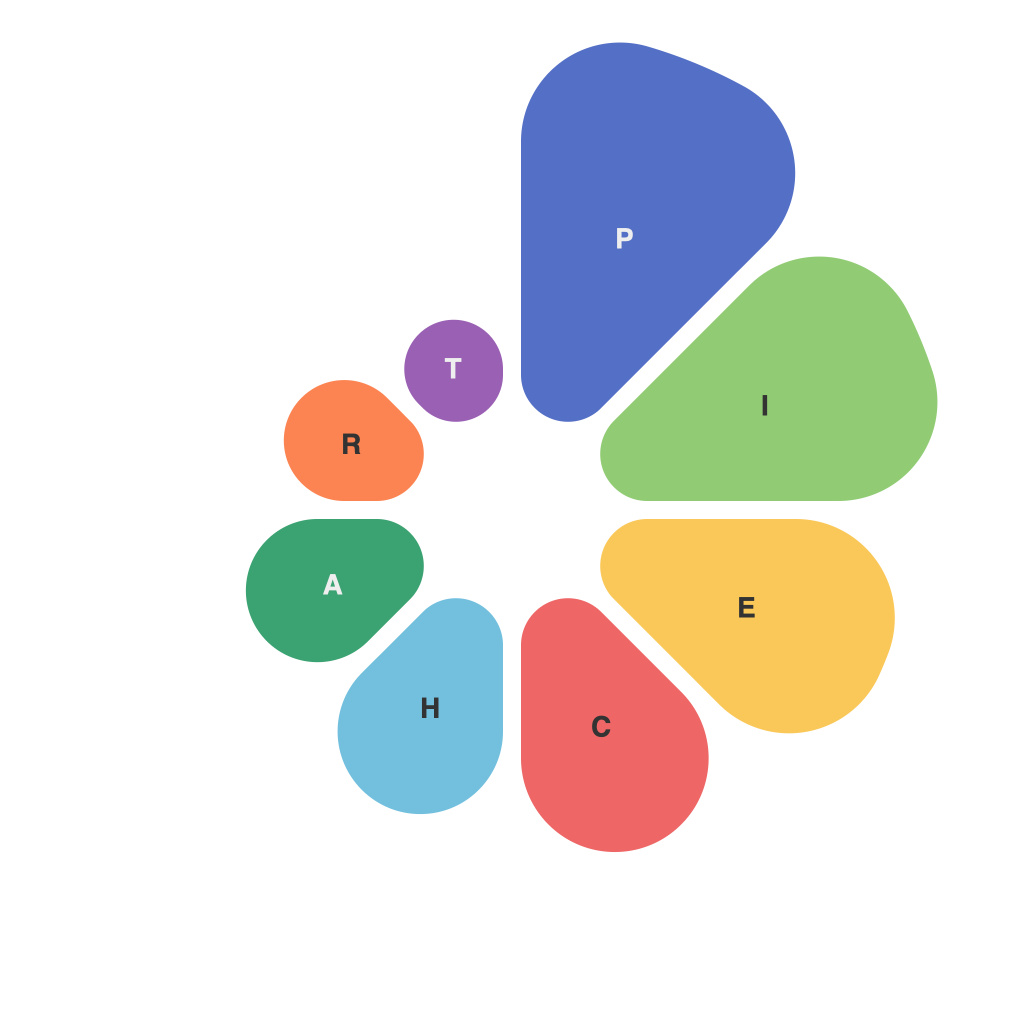
Mastering Data Visualization: The Ultimate Guide to Creating Impressive Pie Charts with PieChartMaster
Picture this: You’ve meticulously collected a set of data that needs to be communicated in a simple yet impactful way, and you’ve decided that a pie chart would be the perfect solution. Whether you’re sharing insights with a team, presenting findings at a meeting, or updating your audience on project progress, a pie chart can make complex information easily digestible. Enter PieChartMaster, a powerful yet intuitive tool that helps you create not just pie charts, but impressive and professional ones at that. This guide takes you through the steps to effortlessly use the software and produce chart marvels that stand out in any context.
**Step 1: Data Preparation**
Before loading your data into PieChartMaster, ensure it’s organized and clean. Each piece of data should have a label and a value that will be represented in the chart. A well-ordered dataset ensures a smooth and error-free chart creation process. PieChartMaster supports various file formats such as CSV, Excel, and JSON, making it versatile for data import.
**Step 2: Initial Setup in PieChartMaster**
Once your data is loaded, PieChartMaster’s user-friendly interface should greet you. Here, select the imported dataset or manually enter values and labels. PieChartMaster allows for customization right from the start, giving you full control over the appearance of your chart.
**Step 3: Design Your Pie Chart**
Now it’s time for the fun part: designing! Customize the color scheme to match your brand or the theme of your presentation. Choose from a variety of color palettes, or even apply custom colors to each slice. Add or remove labels, adjust their position and style, and decide whether to use a legend or not. PieChartMaster lets you fine-tune every detail to your liking.
**Step 4: Enhancing Readability and Impact**
For better readability, consider adding data labels directly to the slices. This feature is crucial if you have multiple segments or small segments that need highlighting. Adjust the label positions, sizes, and even the font types to ensure clarity without overcrowding the chart.
**Step 5: Incorporating Additional Features**
PieChartMaster is not just limited to creating pie charts! It also offers other chart types (like bar or line charts) and advanced features such as:
– **Splitting Pie Slices**: Divide a specific slice into sub-slices for more detailed analysis.
– **3D Effects**: Add a third dimension to your charts for a more immersive visual experience.
– **Animation**: Turn off or on transitions between charts for dynamic presentations.
– **Sharing Options**: Export your chart in various formats (like PNG, PDF, or SVG) to share it easily via email, social media, or presentations.
**Step 6: Review and Finalize**
Before finalizing and publishing your chart, always take a step back to review. Check for any formatting inconsistencies, accuracy of data representation, and overall visual appeal. A well-polished chart is one that tells the story it’s meant to tell effectively and accurately.
**Step 7: Presentation and Feedback**
Your pie chart is now ready to be presented or shared. Remember to tailor the presentation of your data based on the audience. Whether it’s a professional meeting, a boardroom presentation, or a classroom setting, make sure your chart is clear, relevant, and engaging enough to convey its message effectively.
In conclusion, PieChartMaster is an invaluable tool designed to simplify the creation of high-quality pie charts. With its robust feature set and straightforward interface, it empowers users to visualize complex data in a simple, aesthetically pleasing, and impactful manner. Whether for business presentations, academic reports, or personal projects, mastering PieChartMaster can lead to data presentation that captivates and informs, enhancing the overall effectiveness of your communications.