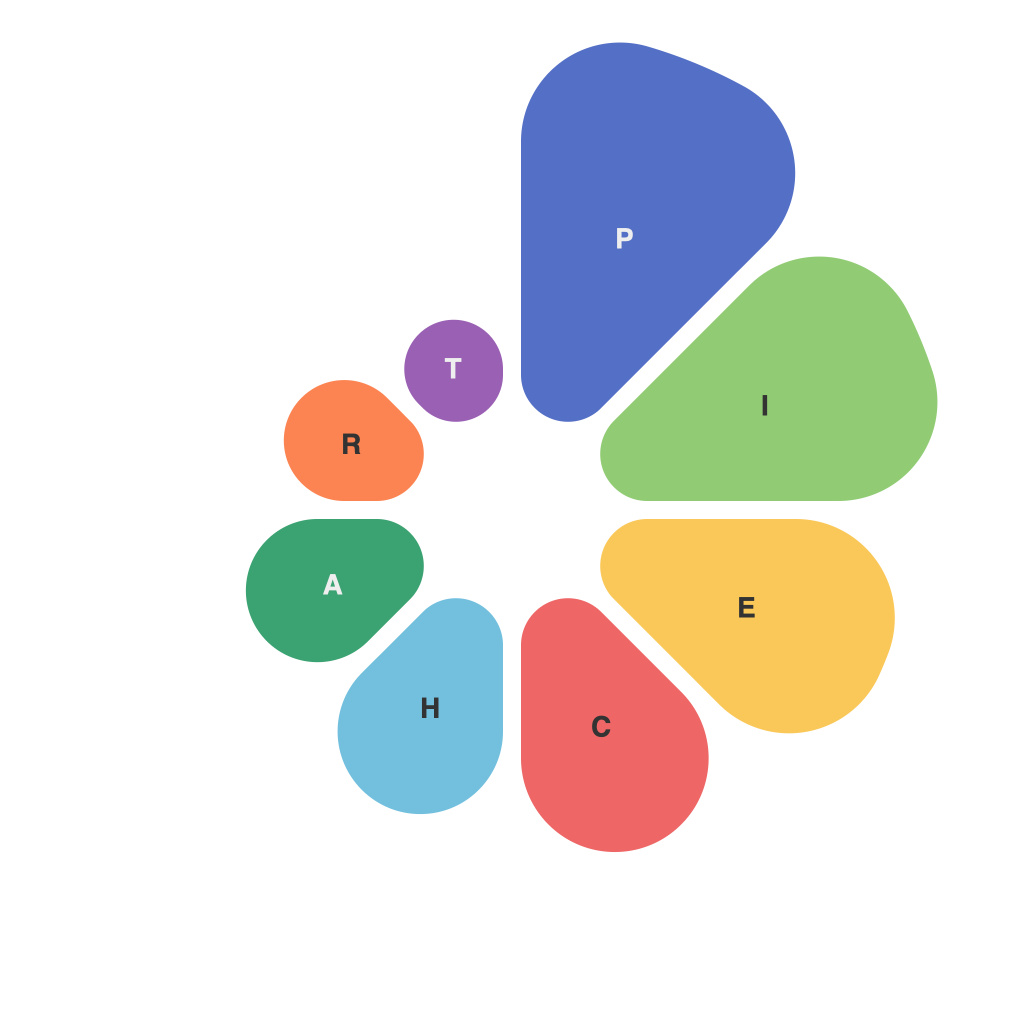
Mastering Data Visualization: The Ultimate Guide to Crafting Compelling Pie Charts with PieChartMaster
Pie charts are universally recognized for efficiently displaying proportions and facilitating quick comprehension of complex data. They offer a visual aid that quickly illustrates how parts contribute to the whole, making them an essential tool for data visualization. PieChartMaster stands out as a powerful tool for creating such compelling pie charts, providing an intuitive platform that simplifies the process of data presentation enhancement. In this comprehensive guide, we delve into the mastery of pie charts using PieChartMaster, addressing key elements, best practices, and features to unlock your data’s full potential.
**Understanding Pie Charts with PieChartMaster**
PieChartMaster offers a user-friendly interface, allowing you to easily import datasets, customize designs, and export your charts. It is compatible with various data sources, including databases, spreadsheets, and CSV files, ensuring flexibility in data integration.
1. **Data Import**: Begin by uploading or connecting your dataset to PieChartMaster. The software supports various formats, ensuring a seamless transition from your data source.
2. **Customization Options**: PieChartMaster provides a robust editing suite. Customize colors, labels, and styles to match your branding or to highlight specific data points. These customizable features allow you to personalize your pie charts, making them more engaging and consistent with your company’s visual identity.
3. **Efficient Layout and Design**: The tool allows you to modify the layout of pie slices, positioning, and spacing, optimizing visual clarity and readability.
Best Practices for Effective Pie Chart Design with PieChartMaster
### 1. **Clarity and Simplicity**
Ensure that the pie charts are not overly complex. Typically, a pie chart should have 8 to 10 slices for clarity. More slices may confuse the viewer and diminish the effectiveness of the chart.
### 2. **Labeling Slices**
Always label the slices with percentages, ideally using a legend if there are multiple data series or when the labels themselves cannot be made readable. This clear labeling helps in providing immediate context for each data piece.
### 3. **Color Schemes**
Use distinct and contrasting colors to distinguish different data segments, which aids in easier visual differentiation and enhances the chart’s interpretability. Ensure that color choices comply with color blindness standards, promoting inclusivity.
### 4. **Consistency Across Charts**
Maintain a consistent color scheme across various pie charts within the same presentation or document for better coherence and easier comparison between charts.
### 5. **Sufficiency of Data**
Employ pie charts only when you aim to illustrate the share of individual segments relative to a whole. Avoid using pie charts when comparing data across different categories, as bar charts or line graphs could be more effective.
### 6. **Accessibility**
Consider the accessibility aspects of your charts, ensuring they are understandable by all audiences, including those with disabilities. This could involve using color blindness-safe palettes and providing text descriptions along with the graphics.
### Utilizing PieChartMaster Features for Enhanced Effectiveness
Some features of PieChartMaster notably enhance the effectiveness of your pie charts. Features like:
– **Interactive Elements**: PieChartMaster allows you to incorporate interactive elements, enabling users to dynamically explore chart data through tooltips, clickable slices, or hover-sensitive labels.
– **Export Options**: The ability to export your charts in multiple formats (PNG, JPEG, PDF, etc.) ensures compatibility with various presentation tools and media, facilitating easy sharing and embedding.
– **Collaborative Editing**: If your workflow includes team collaboration, PieChartMaster supports concurrent editing, ensuring that all team members can contribute effectively to the creation phase.
– **Automated Data Formatting**: PieChartMaster automatically formats data in real-time, reducing the risk of errors and saving time. It includes features for automatic percentage calculations and data sorting, streamlining the data visualization process.
**Conclusion**
Mastering pie charts with PieChartMaster involves understanding the principles of effective visualization, leveraging customization options to enhance visual impact, and utilizing advanced features to streamline your workflow. By following best practices and utilizing PieChartMaster’s sophisticated yet user-friendly tools, you can create pie charts that not only communicate data insights brilliantly but also leave a lasting impression on your audience. Dive into the world of data visualization excellence and let PieChartMaster be your guide to crafting compelling pie charts for impactful presentation.