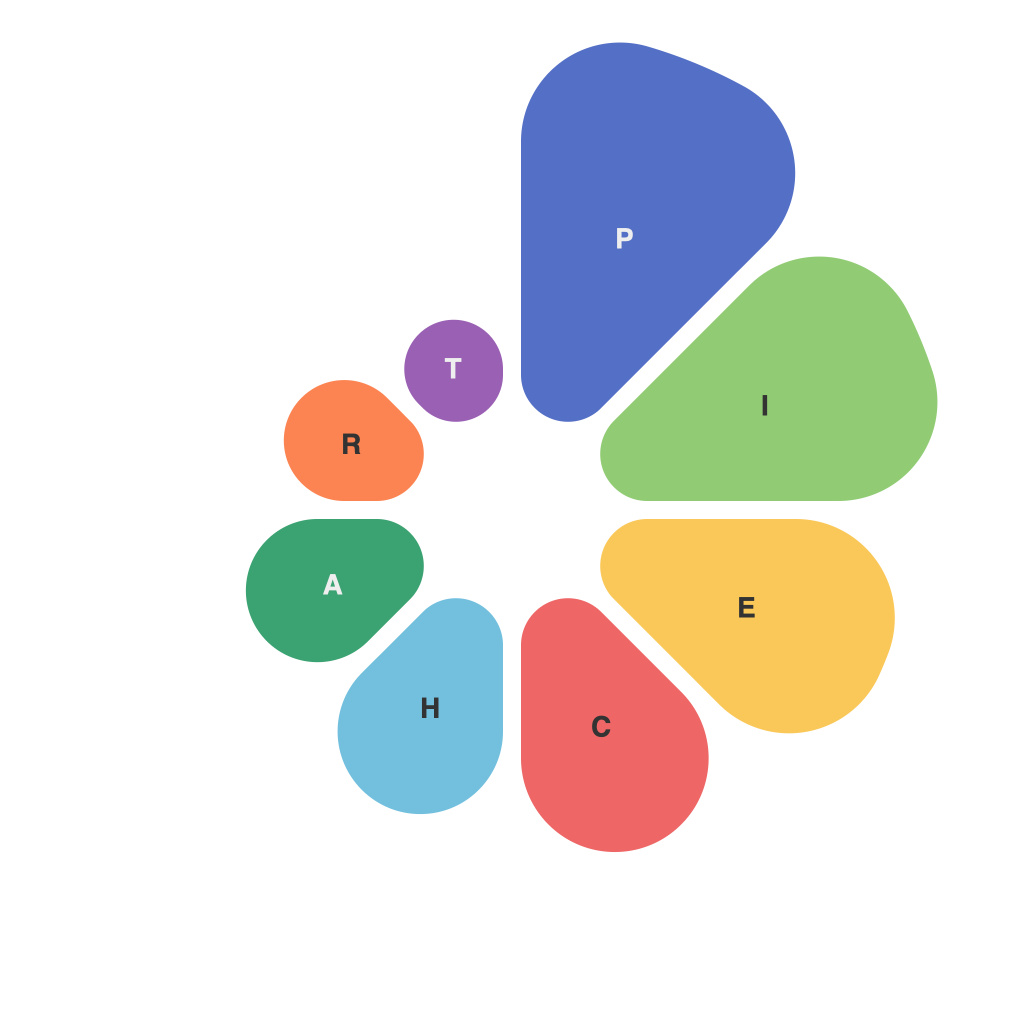
Unlocking Visual Insights with PieChartMaster: Mastering Data Visualization in Excel
In today’s fast-paced business world, effective data visualization is crucial to interpreting, analyzing, and conveying complex information clearly and succinctly. One of the most important tools for graphical representation of data is the pie chart, which excellently displays proportions and percentages at a glance. PieChartMaster, an innovative add-in for Excel, has revolutionized the way users create and customize pie charts. This article aims to guide you through the process of mastering data visualization with PieChartMaster, enhancing your data interpretation capabilities and enabling you to extract meaningful insights from your datasets through powerful, visually appealing pie charts.
Key Features for Data Visualization in PieChartMaster
PieChartMaster significantly elevates your Excel capabilities by introducing a range of advanced features designed to cater to both beginner and advanced users alike:
1. **Pie and Donut Chart Customization**: Generate pie and donut charts with minimal effort, providing a quick visual breakdown of your data. PieChartMaster allows customization of colors, labels, and sizes, giving you full control over the visual aesthetics of your charts.
2. **Trend Analysis**: PieChartMaster aids in visualizing trends and changes in data over time by allowing dynamic updates to your charts. This feature is particularly helpful in tracking performance improvements or declines.
3. **Data Legends for Clarity**: Legends, whether text-based or image-based, can be easily integrated into your pie charts. This visual representation helps in identifying which segments correspond to specific data categories, enhancing readability and comprehension.
4. **Exporting Options**: With PieChartMaster, you have the flexibility to export your charts in various formats such as PNG, PDF, or SVG. This feature is particularly useful for integrating pie charts into presentations, reports, or publications where high-quality graphics are essential.
5. **Customizable Labels**: Beyond basic percentage labels, PieChartMaster allows for personalized labels, incorporating numerical values, text, or even formulas for dynamic data representation. This customization ensures that your charts not only look professional but also convey precise data to your audience.
6. **Dynamic Data Updates**: PieChartMaster integrates seamlessly with your Excel data. Any changes in your underlying data are instantly reflected in the charts, ensuring that your visual representations are always current and reflective of the most recent data.
7. **Compatibility Enhancements**: Designed for various versions of Microsoft Excel, from Excel 2016 onward, PieChartMaster ensures broad compatibility with existing workflows. This compatibility simplifies the adoption of advanced charting features without disrupting your ongoing projects.
Steps to Master PieChartMaster in Excel
Despite its advanced features, PieChartMaster is user-friendly and straightforward to integrate into your Excel environment. Here’s how you can start leveraging PieChartMaster to elevate your data visualization skills:
1. **Installation**: Download the PieChartMaster add-in from its official source. Ensure that you select the version compatible with your Excel application to avoid any potential errors or incompatibilities.
2. **Add to Excel**: Once installed, PieChartMaster adds a new tab to the Excel ribbon labeled “PieChartMaster.” Click on this tab to access the range of chart customization tools and options.
3. **Data Preparation**: Ensure your data is organized in a suitable format within Excel. PieChartMaster works effectively with data organized in ranges or tables, making it effortless to select the data you wish to visualize.
4. **Creating a Chart**: Select your data range and click on the “Insert Chart” button within the PieChartMaster tab. Choose between a standard pie chart or a more visually engaging donut chart to suit your presentation needs.
5. **Customizing Your Chart**: Use the various options under the “Chart Design” and “Format” tabs to adjust colors, labels, legends, and other design elements. Experiment with different layouts to find the most effective way to communicate your data.
6. **Advanced Features**: Dive deeper into PieChartMaster by leveraging its advanced features, such as trend analysis and custom labels, to delve into complex data relationships and uncover nuanced insights.
7. **Integration and Export**: Integrate your pie charts into your presentation decks, reports, or websites by exporting them in your desired format. This step ensures that your data visualizations are presented professionally and effectively.
Conclusion
Unleash the power of effective data visualization with PieChartMaster in Excel. By integrating this add-in into your data analysis workflow, you can turn complex datasets into illuminating, visually compelling stories. With its intuitive design and advanced features, PieChartMaster empowers users at all skill levels to create, customize, and optimize pie charts for both personal and professional projects. Embrace the precision and clarity that only visual insights can offer, and let PieChartMaster help you unlock the full potential of your data.