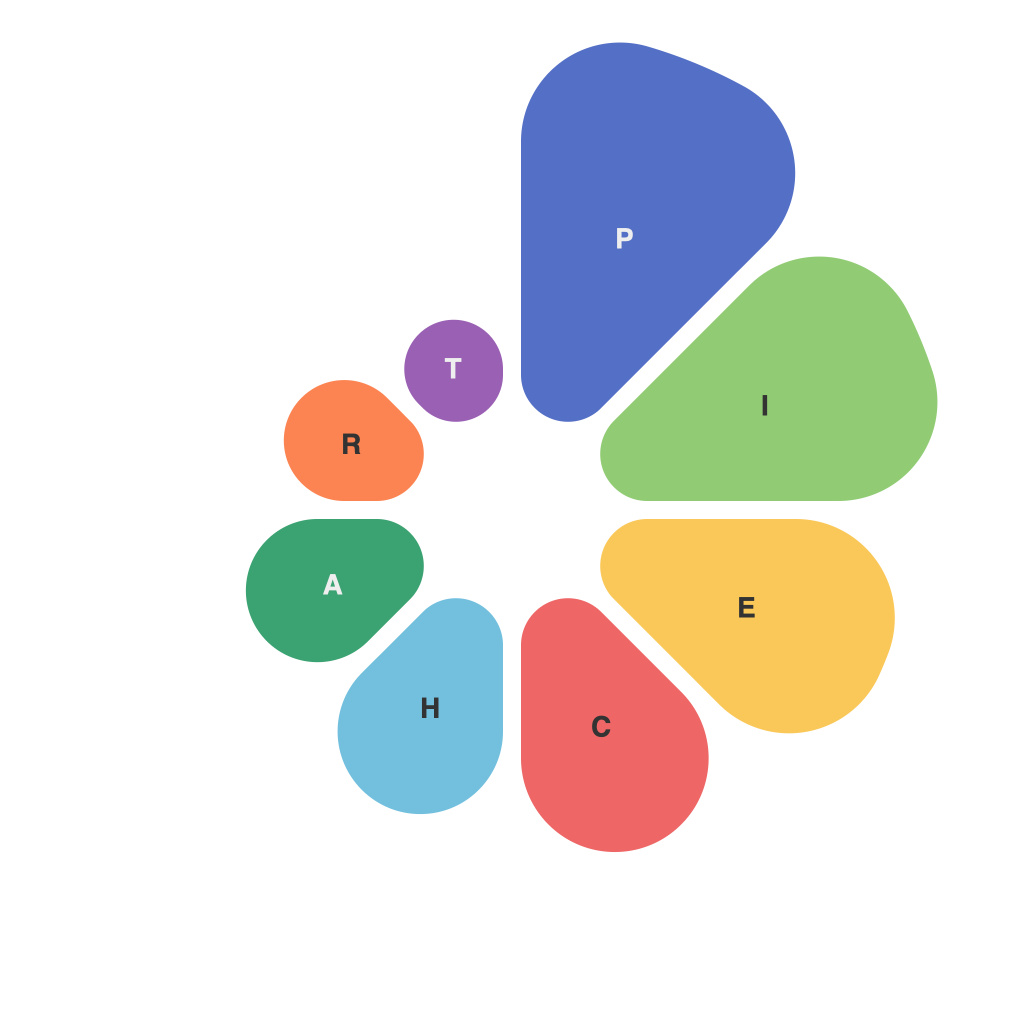
Unleashing Insights with PiechartMaster: A Comprehensive Guide to Data Visualization
In today’s data-driven world, the ability to turn raw numbers into meaningful insights is a crucial skill. One tool that has gained prominence in the vast array of data visualization options is PiechartMaster. This guide seeks to take you on an insightful journey through the world of pie charts, demystifying how to use PiechartMaster for effective data representation and providing a comprehensive understanding on how pie charts work and how to best utilize them.
Pie chart, as an iconic form of visual storytelling, provides a powerful way to display parts of a whole. Whether it’s illustrating market shares, budget allocations, or demographic breakdowns, pie charts offer a visually intuitive way to understand the composition of a dataset. As such, the usage of PiechartMaster helps in making complicated data more accessible and understandable, thus boosting comprehension and engagement with the data in question.
When it comes to PiechartMaster, one can expect a user-friendly experience that empowers both beginners and seasoned professionals in creating impactful pie charts. Here, we will explore some basic functionalities and advanced features, guiding you through the creation, customization, and insights that pie charts can provide.
### Basics of PiechartMaster
#### Creating a Pie Chart
1. **Data Input**: The first step in creating a pie chart with PiechartMaster involves inputting your dataset. You can upload data from various sources or manually input the data directly into the software.
2. **Parameter Selection**: Select the categories you want to represent on the pie chart. This involves choosing which data points you want to present, ensuring they accurately reflect your data’s composition.
3. **Chart Generation**: Once your data and categories are set, PiechartMaster generates the pie chart. The software automatically adjusts the size of each slice according to the value it represents.
#### Customization Options
– **Style Customization**: You can change the colors, add or remove labels, choose a 3D effect, or create a shadow, giving your pie chart a personalized touch.
– **Sorting and Slicing**: Decide how you want the slices sorted and slice them based on importance or value, such as largest to smallest or alphabetically.
#### Advanced Features
– **Data Drilling**: Dive deeper into your data by selecting specific segments of the pie chart for more detailed analysis.
– **Interactive Pie Charts**: Enhance user engagement by making your pie chart interactive. PiechartMaster allows adding hover effects, enabling users to see more data upon hovering over each segment.
### Analyzing Insights
Pie charts, when properly used, offer a series of insights:
– **Comparison of Categories**: Easily compare sizes and proportions of categories at a glance.
– **Trend Analysis**: With time-series data, pie charts can illustrate changes in composition over time, revealing trends and shifts.
– **Relationships and Proportions**: Clearly see the interplay between different data segments, understanding how they contribute to the overall dataset.
### Best Practices
When using PiechartMaster and pie charts in general, here are some key practices to consider:
– **Limit Categories**: Typically, a pie chart should not include more than 5 to 7 slices to ensure clarity and easy understanding.
– **Use Real Data**: Make sure the data you use is accurate and relevant to the story you are trying to tell.
– **Focus on Key Metrics**: Emphasize the most important categories in your presentation to guide the viewer’s focus.
### Conclusion
PiechartMaster offers a highly effective solution for visualizing data, promoting greater clarity and accessibility in understanding complex datasets. By demystifying pie charts and leveraging the features of PiechartMaster, one can unlock the power of data visualization, enhancing communication and decision-making processes. Master the art of pie charts with PiechartMaster to achieve more insightful and impactful data presentations.