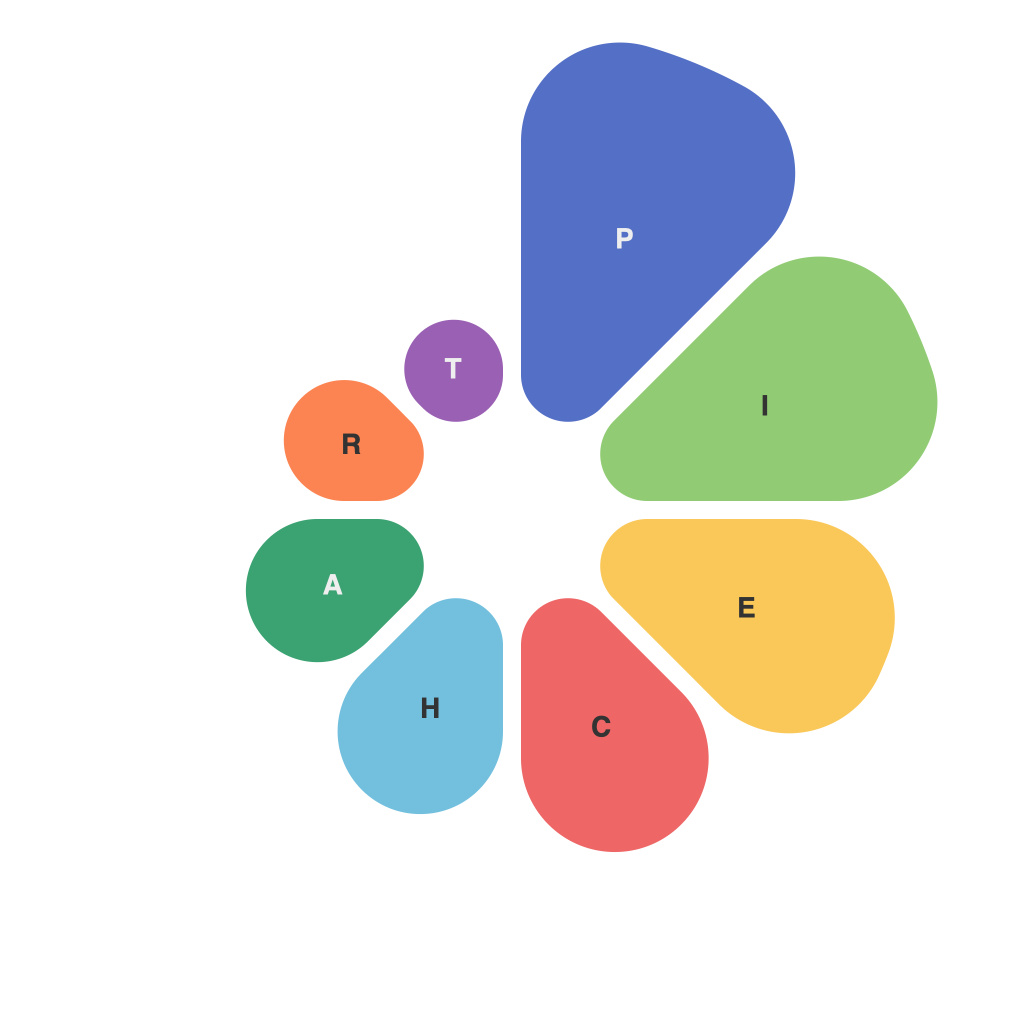
Unlocking Visual Insights with PieChartMaster: A Comprehensive Guide to Mastering Data Visualization
In today’s data-driven world, the ability to visually interpret and present complex data is paramount. This is where tools like PieChartMaster come in, enabling users to turn their numerical findings into compelling, easy-to-understand visual stories. This guide aims to provide a comprehensive walkthrough of PieChartMaster, equipping individuals and professionals alike with the skills to unlock profound insights from their data through pie charts.
### Step 1: Understanding Pie Charts
Before diving into PieChartMaster, it’s crucial to grasp the fundamentals of pie charts. A pie chart, also known as a circle chart, is a type of graph in which a circle is divided into sectors that each represent a proportion of the whole. This graphical representation is perfect for showing distributions, proportions, and percentages of data in a clear and visually appealing manner.
### Step 2: Getting Started with PieChartMaster
#### Installation and Setup
If you haven’t already, download and install PieChartMaster from the official website. Once installed, the first thing you should see is a straightforward interface with clear command buttons and a space where your pie chart will appear. It’s intuitive and user-friendly, making it accessible for beginners and seasoned data visualizers alike.
#### Data Input
PieChartMaster offers flexibility in data entry. You can directly input your data into the software, copy and paste it from spreadsheets, or load it from various file formats. The software supports common data formats such as CSV or Excel files, making it easy to get your data onto the platform.
### Step 3: Customizing Your Pie Chart
One of the key advantages of PieChartMaster is its extensive customization options. Here’s how to tailor your pie chart to perfection:
**Labels**: Add labels to each sector for clarity. You can choose between full labels (including the percentage) or abbreviated ones (just the percentage or the component name).
**Colors**: Customize the colors of each sector to enhance readability or match a specific design theme. PieChartMaster offers a wide palette to choose from, ensuring your chart stands out.
**Slices Display**: Control the maximum number of sectors in the chart. For numerous data points, you can either group the smaller slices into an “Others” category or exclude the least significant sectors to keep the chart clean.
**Animations**: Although not essential, adding animations can make your pie chart more engaging. Consider utilizing these features for presentations or reports where visual impact is crucial.
### Step 4: Advanced Features
PieChartMaster goes beyond the basics, offering advanced tools for data visualization:
**Legends**: A legend allows viewers to identify which colors correspond to which data categories, especially when the chart lacks labels or when the number of categories is too large to be included in the chart itself.
**Interactivity**: PieChartMaster allows you to add data tooltips that provide detailed information on each sector when hovered over. This creates a more interactive and engaging experience for your audience.
**Saving and Sharing**: The tool provides seamless export options, enabling you to save your pie chart in various formats (PNG, JPEG, PDF) and easily share it through email, online platforms, or print it out.
### Step 5: Best Practices for Effective Pie Charts
– **Legends are crucial**: When sectors are color-coded, ensure to provide a legend to avoid confusion.
– **Keep it simple**: A pie chart works best for showing proportions of categories with no more than five segments. For larger data sets, consider using a bar chart or a stacked bar chart.
– **Use 3D for impact**: Sometimes, using three-dimensional or exploded views can add visual interest, but ensure that the design does not obscure the data. Visual clarity should always take precedence over style.
– **Highlight key information**: Use colors or labels to draw attention to the most significant data points in your pie chart.
### Conclusion
By following this comprehensive guide, you’ll be well-equipped to create visually stunning and informative pie charts using PieChartMaster. This advanced tool significantly simplifies the process of turning intricate data sets into accessible visual stories, giving you a competitive edge in data analysis and presentation. Remember, the key to successful data visualization lies in presentation clarity, logical organization, and effective use of graphical elements. Happy charting!