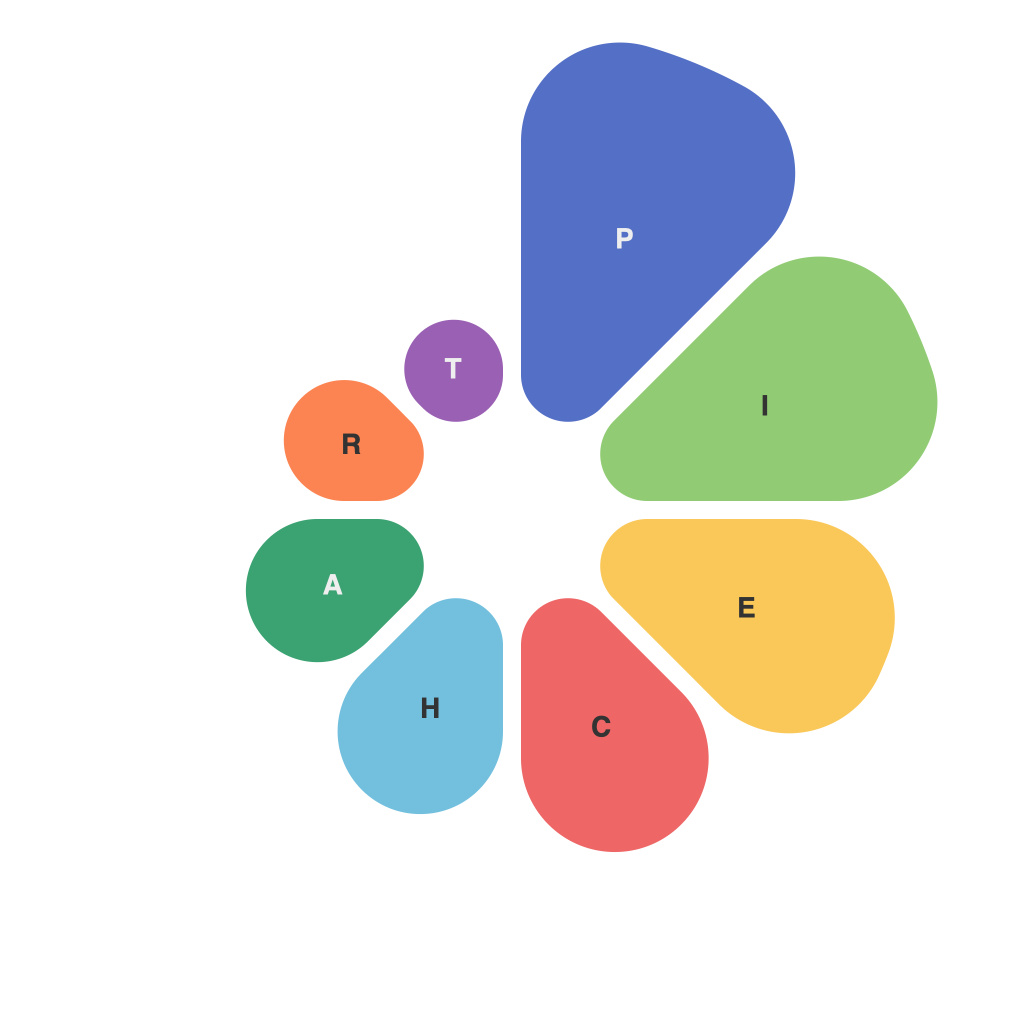
Unlocking Insight with PieChartMaster: A Comprehensive Guide to Visualizing Data Through Pie Charts
Pie charts, a fundamental yet versatile tool in data visualization, play a crucial role in helping individuals and organizations worldwide understand complex data more clearly and efficiently. By presenting information in a visually appealing format, pie charts can reveal relationships, trends, and patterns that might escape unnoticed when interpreting raw data. This comprehensive guide introduces you to PieChartMaster – a top-tier application that brings the power and simplicity of pie charts to the digital realm, enabling both beginners and experts alike to craft insightful visualizations with ease.
### Understanding Pie Charts
Before diving into PieChartMaster, it’s essential to grasp the basic structure of pie charts. Primarily, these charts utilize a circle partitioned into sectors, where each sector’s area in the circle represents the proportion of the whole that each data category occupies. The size of each sector is proportional to the quantity or percentage it represents, offering a straightforward visual comparison among the parts.
### Introduction to PieChartMaster
PieChartMaster is an innovative data visualization software designed to empower users to create, modify, and present pie charts with unparalleled ease and efficiency. By harnessing the latest technologies in data visualization and design, PieChartMaster delivers an array of features that cater to both professional data analysts and casual enthusiasts. Whether you’re looking to quickly generate charts for a presentation or need advanced customization options, PieChartMaster offers the perfect blend of simplicity and sophisticated functionality.
### Quick Start Guide to PieChartMaster
#### Installation and Setup
– **Access**: Download and install PieChartMaster from the official website or platform-specific app store, depending on whether you’re using a desktop computer or a mobile device.
– **Basics**:
– **Opening**: Launch the application. Upon first use, you might encounter a tutorial or setup wizard; ignore them if you’re seeking an immediate solution.
– **Creating a Chart**: Select the “Create Chart” option, which leads you to the data input screen.
– **Input Your Data**:
– **Categories & Values**: Define your categories (labels) and corresponding values. This could range from sales data, survey results, budget allocations, or any dataset you wish to visualize.
#### Design and Customization
– **Appearance Settings**: Customize the look of your pie chart. This includes choosing colors, font styles, and sizes to reflect your theme or brand identity.
– **Exploration Tools**: Utilize PieChartMaster’s interactive features to add tooltips, explode sectors for emphasis, or incorporate animations for dynamic presentations.
– **Export Options**: Save your chart as a high-quality image file or embed it directly into documents, presentations, or web pages.
### Advanced Features
#### Data Handling
– **Data Import**: Import datasets from various formats like CSV, Excel, or directly from databases, simplifying the setup process.
– **Dynamic Updates**: Connect PieChartMaster to live data sources for automatic updates, ensuring your charts always reflect the most current information.
#### Advanced Visualization
– **Multiple Charts**: Create multiple pie charts and arrange them within a single document for comparative analysis.
– **Annotations**: Add detailed insights or explanations directly onto your charts for enhanced understanding.
### Best Practices and Common Challenges
#### Effective Communication
– **Focus on Clarity**: Ensure that each pie chart targets a singular message. Overcomplicated categories can lead to confusion rather than insights.
– **Accessibility**: Use high-contrast color schemes and larger fonts for enhanced readability, particularly when preparing charts for audiences with various visual needs.
#### Common Pitfalls
– **Comparative Scenarios**: Avoid comparing the same data across multiple pie charts, as pie chart structures are best suited for a single dataset’s composition.
– **Misinterpretation**: Be cautious of the visual biases that come with pie charts, such as the “illusion of precision.” Avoid using pie charts for data with small differences, where other charts like bar graphs might provide clearer distinctions.
#### Tools and Resources
– **Learning Resources**: Take advantage of PieChartMaster’s online tutorials, video guides, and user forums to deepen your understanding and skillset.
– **Community Interaction**: Engage with other users through forums and social media groups, where you can share ideas, solve issues, and get inspiration for new visualizations.
### Conclusion
PieChartMaster’s journey into unlocking insights through data visualization begins with a simple setup and blossoms into an endless ocean of customization and creativity. By harnessing the power of this tool, you can transform complex datasets into clear, engaging, and impactful visual stories. Whether crafting presentations for stakeholders or enriching educational materials, PieChartMaster empowers you to see and understand your data like never before, fostering deeper insights and driving informed decision-making.