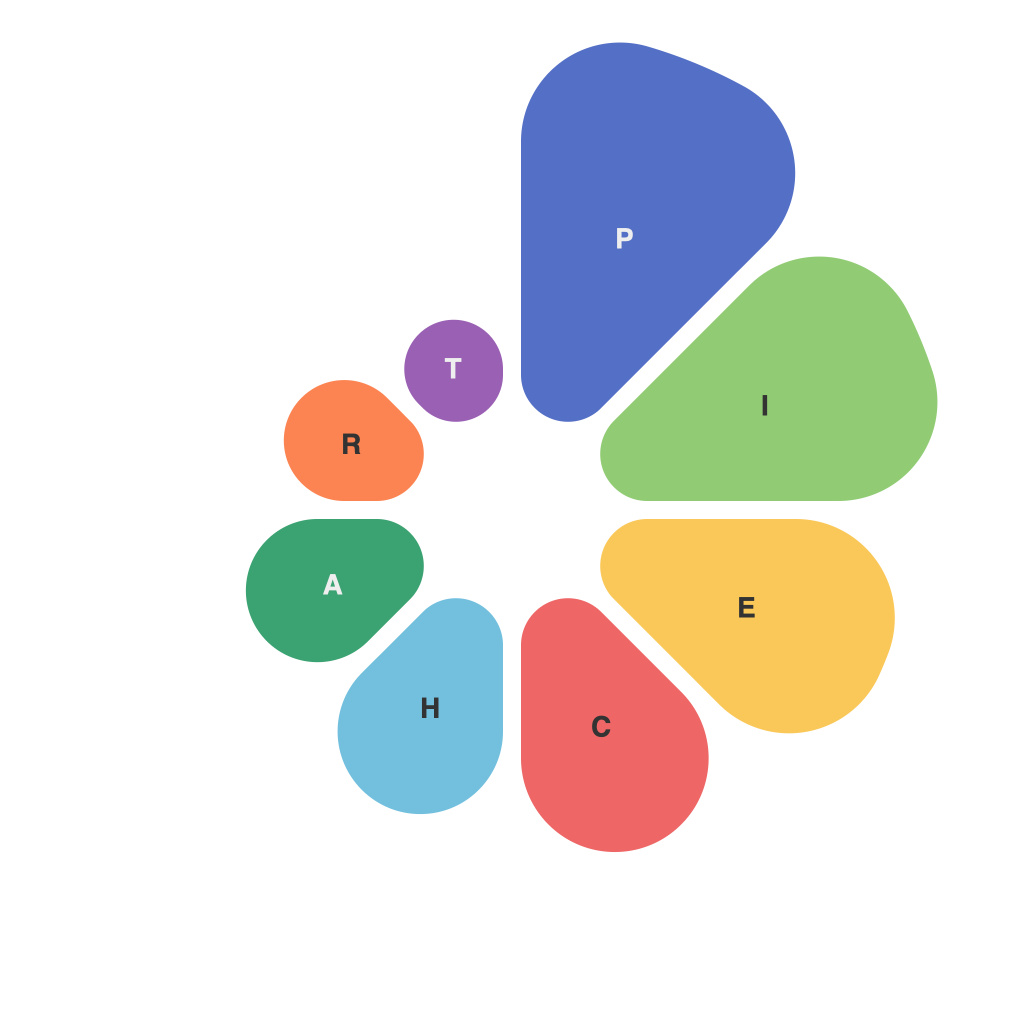
The art of visualizing data has revolutionized the way we analyze and interpret complex information, making data analysis more accessible to a wider audience. A significant tool utilized in this process is the PieChartMaster – a pie chart visualization application designed to make your data insights more visible and comprehensible. This guide aims to introduce you to the fundamentals of pie chart creation and mastery using the PieChartMaster tool.
### What is PieChartMaster?
PieChartMaster is a user-friendly data visualization tool that allows you to convert raw data into visually appealing pie charts, making it easier to understand proportions and ratios. It supports a wide range of data types and offers customization options to tailor your charts precisely to meet specific presentation and analytical needs.
### Why Use Pie Charts?
Pie charts are excellent for illustrating how data is divided into parts of a whole. They provide a quick visual representation that makes it easier for the audience to grasp percentages of total values. Each sector of the pie chart corresponds to a different category, with the size of the sector indicating the proportion of that category relative to the whole.
### Getting Started with PieChartMaster
To begin creating a pie chart with PieChartMaster, you’ll first need to ensure you have your data prepared in a suitable format. PieChartMaster supports CSV, Excel, TXT, and other common data formats. Your file should contain data organized in columns and rows, with one category per row and a total value in the last row if each category is to be calculated based on a total.
#### Step 1: Import Data
1. Open PieChartMaster and click the ‘File’ menu to choose ‘Import Data…’.
2. Browse your local files to select your data source and import it.
#### Step 2: Data Preview and Configuration
1. Once your data is imported, you’ll see a preview table. Here, you can adjust the configuration of your data, such as column headers, row labels, and the data to be used for each slice.
2. Specify the categories, the values associated with each category, and any relevant labels needed for clarity.
#### Step 3: Add Data to the Chart
1. Go back to the main menu and select ‘Create’ or click the ‘Create Pie Chart’ button.
2. The application will automatically generate the pie chart based on the data configuration you’ve set.
### Customizing Your Charts
PieChartMaster offers numerous customization options to enhance the aesthetics and functionality of your pie charts. You can adjust colors, labels, display options, and even add additional features such as exploding slices, applying gradients, or adding a legend.
#### Color Customization
Choose from a range of color themes or apply individual colors to enhance readability and align with your branding or presentation themes.
#### Label Personalization
Control the text displayed for each slice, including options for adding percentages, labels, or rotating text for better visibility.
#### Adding Interactivity and Animations
Enhance user engagement by adding tooltips that provide more detailed information when hovering over slices or by including animations that draw attention to specific slices.
### Advanced Features
For those requiring more advanced analysis, PieChartMaster also supports the aggregation of data, comparison of multiple datasets, and the creation of series charts within a single pie chart for complex data analysis needs.
### Conclusion
PieChartMaster is an innovative tool designed for anyone with a need to visualize data effectively. Whether you’re a beginner or an experienced data analyst, the program caters to your needs with its user-friendly interface and extensive customization capabilities. By mastering PieChartMaster, you’re not only enhancing your data presentation skills but also improving the overall comprehension and impact of your data analysis projects. So, dive in and unleash the potential of your data through the powerful and intuitive PieChartMaster platform.