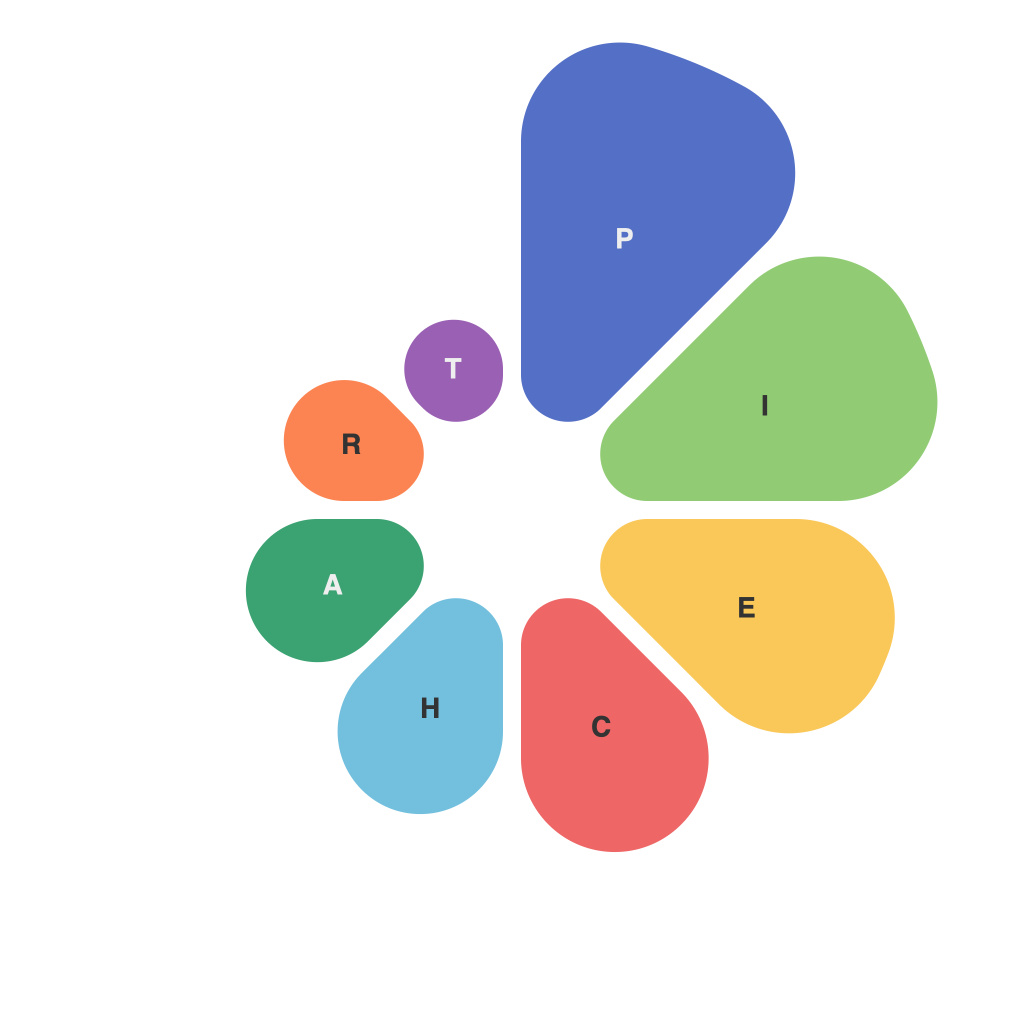
Mastering Pie Charts: Effective Data Visualization Techniques with PieChartMaster
Pie charts are a common graphical representation used to present data in a way that is easy to understand. They display proportions of a whole, with each slice showing a different part of the data set. For effective visual communication, mastering the use of pie charts can be invaluable in many professional and personal contexts. With a tool like PieChartMaster, incorporating these techniques can significantly enhance your charting skills, making your data more accessible and engaging. Below are some key techniques for using pie charts effectively:
### 1. **Understand Your Data**
Before you begin creating a pie chart, it’s crucial to understand the data thoroughly. Identify the categories and their values. Each category should contribute differently to the whole, and understanding these differences helps in accurately representing the data.
### 2. **Use PieChartMaster for Data Input**
PieChartMaster facilitates the process of inputting data into a pie chart. Start by defining the categories and corresponding values either manually or by uploading a data file. PieChartMaster then automatically calculates each pie slice’s size to visually represent each category’s proportion accurately.
### 3. **Limit the Number of Categories**
Avoid overcrowding your pie chart with too many categories. Try to keep the number below seven to ensure clarity and easy comprehension. If there are many categories, consider grouping smaller categories into an ‘Others’ category to keep the chart clean and focused.
### 4. **Use Color Wisely**
Color plays a significant role in making a pie chart visually appealing and understandable. Use contrasting colors to distinguish each category easily. For a more professional look, ensure readability, often choosing light backgrounds for bold colors and vice versa. Additionally, consider using colors with some level of similarity to avoid overwhelming the viewer.
### 5. **Highlight Key Categories**
If there are one or two important categories you wish to highlight, consider using a different color or a slightly smaller slice to emphasize these points. This technique can draw the viewer’s attention to the most significant data points more effectively.
### 6. **Add Data Labels**
Data labels should be included in pie charts to show the exact values of each slice. PieChartMaster allows customization of these labels, such as their position and style, to ensure that they do not clutter the chart and are easily readable.
### 7. **Focus on Readability**
Ensure that the labels, numbers, and any additional text do not distract from the primary purpose of the chart. Use PieChartMaster’s layout options to maintain a clean, professional appearance that ensures users can easily understand the information presented.
### 8. **Use PieChartMaster for Customization**
The powerful features of PieChartMaster allow for extensive customization, including the ability to adjust the overall style, including the chart’s colors, fonts, and layout. These settings can be tailored to align with branding or to suit specific presentation requirements, making your data presentation more impactful.
### 9. **Evaluate the Use of Chart Interactivity**
For reports or presentations aimed at a digital audience, incorporating interactive elements can greatly improve user engagement. PieChartMaster can enable hovering over slices to reveal more detailed information, enhancing user experience and data understanding.
### 10. **Test Your Chart**
Before finalizing your pie chart, test it in different scenarios, adjusting as necessary. PieChartMaster offers various export options, including editable formats, which let you fine-tune your chart on the go.
By employing these techniques and leveraging the features of PieChartMaster, you can create compelling, informative, and visually appealing pie charts that are effective in communicating data across different platforms and settings.