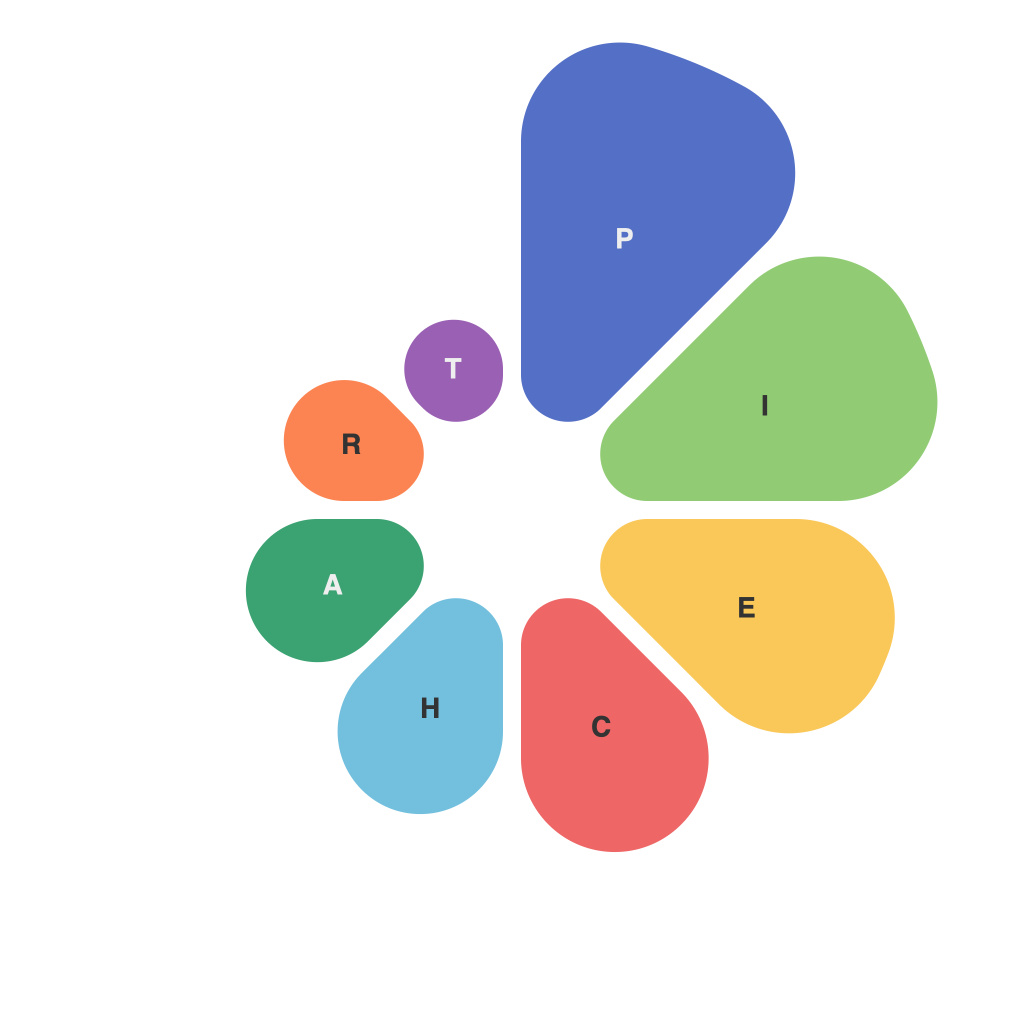
In the vast landscape of Excel tools and functionalities, the Pie Chart stands as a beacon for visualizing data and conveying it in digestible slices. However, what lies beneath this seemingly straightforward chart type? There’s far more than meets the eye in the realm of PieChartMaster and the myriad Excel tips and tricks that can elevate your pie charts from ordinary to extraordinary. Let’s delve into the nuances and uncover the secrets behind creating impactful and insightful presentations through Excel’s masterpiece of the pie.
**Pie Chart Basics**
To begin with, one should understand what a Pie Chart is and the quintessence of its components. It is a circular statistical graph that divided whole into slices to represent numerical proportions. Each sector is a piece of the pie and the size reveals the amount of whatever you are visualizing.
**PieChartMaster Excel Tips for Layout and Visualization**
1. **Pie Slicing:**
– Employ the “3-D Rotation” feature to vary the angle of view for a more dynamic chart.
– When working with numerous slices, adjust the slice width to avoid overcrowding. Excel allows you to set a minimum angle for slices so that very small segments do not clutter the chart.
2. **Color Schemes:**
– Use contrasting colors to differentiate slices clearly.
– Apply the “Suggested Colors” feature automatically or choose them manually to ensure readability and pleasant aesthetics.
3. **Labels and Text:**
– Utilize the “Chart Label” feature to add percentages or actual values to the slices for a more informative pie chart.
– Ensure the labels are readable by adjusting their font size, color, and thickness.
4. **Formatting the Chart Area:**
– Utilize “Chart Tools” and select the “Chart Area” in the ‘Format’ panel for background color, borders, or other design elements.
**PieChartMaster Excel Calculations**
1. **Summarized Data:**
– Make sure you are piecing together summarized data while creating the pie chart. You wouldn’t want each individual transaction’s value to be represented on the chart.
2. **Data Labels and Callouts:**
– Use callouts to highlight a certain slice for emphasis. They offer a non-intrusive way to provide additional details.
3. **Dynamic and Interactivity:**
– Turn your static pie chart into an interactive one by linking it to data tables, and users can click on individual pie slices to view more information or enable pie charts to update in real-time.
**Advanced Pie Chart Techniques**
1. **Exploded Slices:**
– Create an “exploded” or “popped-out” effect on one or more slices of the pie for focus on a particular segment of your data.
2. **Stacked Pie Charts:**
– Break the pie into segments that each represent the subcategories of another, such as the split between two different categories.
3. **Adjusting Depth/Extrusion:**
– Add a 3-D effect to enhance the Pie Chart, adjust the depth, and even experiment with extrusion to create a more dynamic chart.
**PieChartMaster Excel Automation and Analysis**
1. **Conditional Formatting:**
– Apply conditional formatting to highlight certain slices based on meeting specific criteria – which can add a layer of intelligence to your chart.
2. **Power Pivot:**
– For more complex data, use Excel’s Power Pivot to analyze and aggregate your data before creating the pie chart. This tool allows for detailed analysis and the generation of complex pie charts with ease.
**The Human Element in PieChartMaster**
While the above tips pertain directly to creating pie charts within Excel, the last secret ingredient lies in how you interpret and communicate the results. Ensure the chart reflects your findings accurately and is accessible in meaning and design to your audience. Sometimes a pie chart might not be the best medium to convey information, especially when the numbers are very close to each other or when you need to compare across many data points.
By harnessing these PieChartMaster Excel tips and tricks, you can effectively unlock the full potential of Excel’s pie charts. From simple data visualization to complex and sophisticated data storytelling, PieChartMaster and Excel become indispensable allies in the quest for clear, compelling, and accurate data representation.