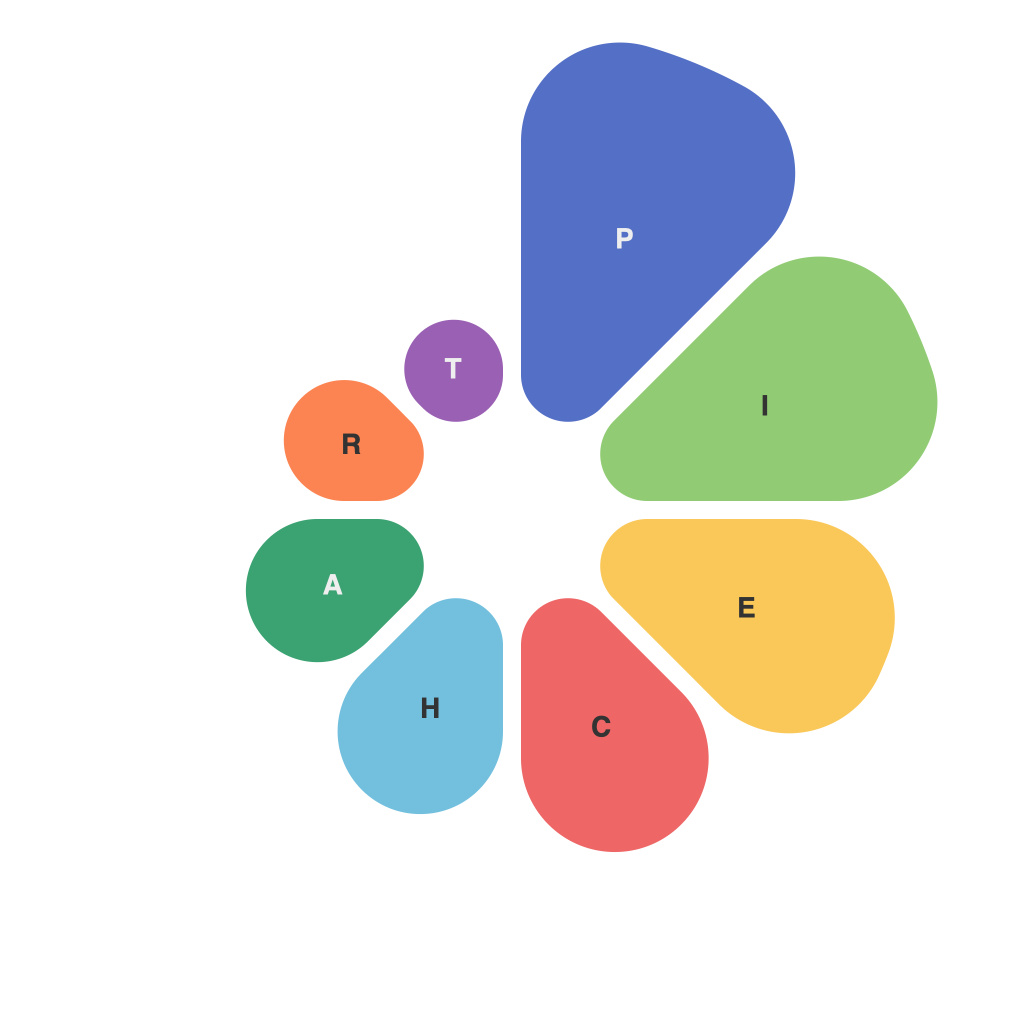
Mastering the Visual Representation: An In-depth Guide to Creating Impressive Pie Charts Using PieChartMaster
Pie charts serve as a simple yet effective visual tool for showcasing proportions and percentages of a whole dataset. They’re especially beneficial when you’re dealing with a situation where a few significant constituents form most of the total, and you want to vividly show the relative sizes of those parts. With the PieChartMaster — a powerful yet intuitive software designed to facilitate the creation of visually appealing and informative pie charts — this task can be executed with ease and efficiency.
**Step 1: Importing PieChartMaster Software**
The initial step in creating any chart involves acquiring the software. PieChartMaster is a versatile tool known for its user-friendly interface and its ability to customize pie charts effectively – making it an ideal choice for both beginners and advanced users, alike. You can access the software by either downloading it from reputable tech platforms or exploring the free trials offered by the developer.
**Step 2: Data Entry**
At the heart of any chart-making process is data which makes your chart informative and useful. The PieChartMaster allows you to either load pre-existing datasets or manually enter values. This phase involves defining the parts of your pie chart – each part represents a category of the whole data. Ensure that all entries are accurate and complete to avoid misrepresentation of data in your chart.
**Step 3: Customization and Design**
With your data set in place, the fun part of the process — customization begins. PieChartMaster offers various options to tailor your pie chart according to your preferences. You can choose the chart color palette, add a title, include a legend, and even alter segment labels. Adding a professional touch to your chart, you can customize colors to reflect different data categories or ensure they’re visually pleasing for viewers.
**Step 4: Formatting and Presentation**
Once you’ve designed your pie chart, the next step is to ensure it’s well-presented and ready to be shared or displayed. PieChartMaster allows you to adjust the size and shape of your chart, ensuring it fits perfectly into your presentation or report. There’s also the flexibility to save the chart in various formats, such as PNG, JPEG, SVG, or PDF, depending on the requirements of your project.
**Step 5: Analyzing and Interpretation**
The last, but equally crucial step is interpreting your chart. PieChartMaster often comes equipped with features to analyze your data visually. You can hover over each segment to get real-time information about the proportions represented, making it easy to identify key data points or trends. Tools like displaying cumulative percentages or highlighting the dominant segments in different colors enhance the interpretability of your chart.
**Conclusion**:
By following these steps, you can seamlessly utilize the PieChartMaster to create impactful, visually appealing pie charts that effectively communicate the story of your data. Remember, the quality of your data and the clarity of your chart’s presentation are key in ensuring the effectiveness of your storytelling. Whether for academic reporting, business communications, or project planning, pie charts created with PieChartMaster offer a robust, flexible, and compelling way to visualize and understand your data’s proportions and relationships. Dive into the versatile features of PieChartMaster today and elevate your data representation skills!