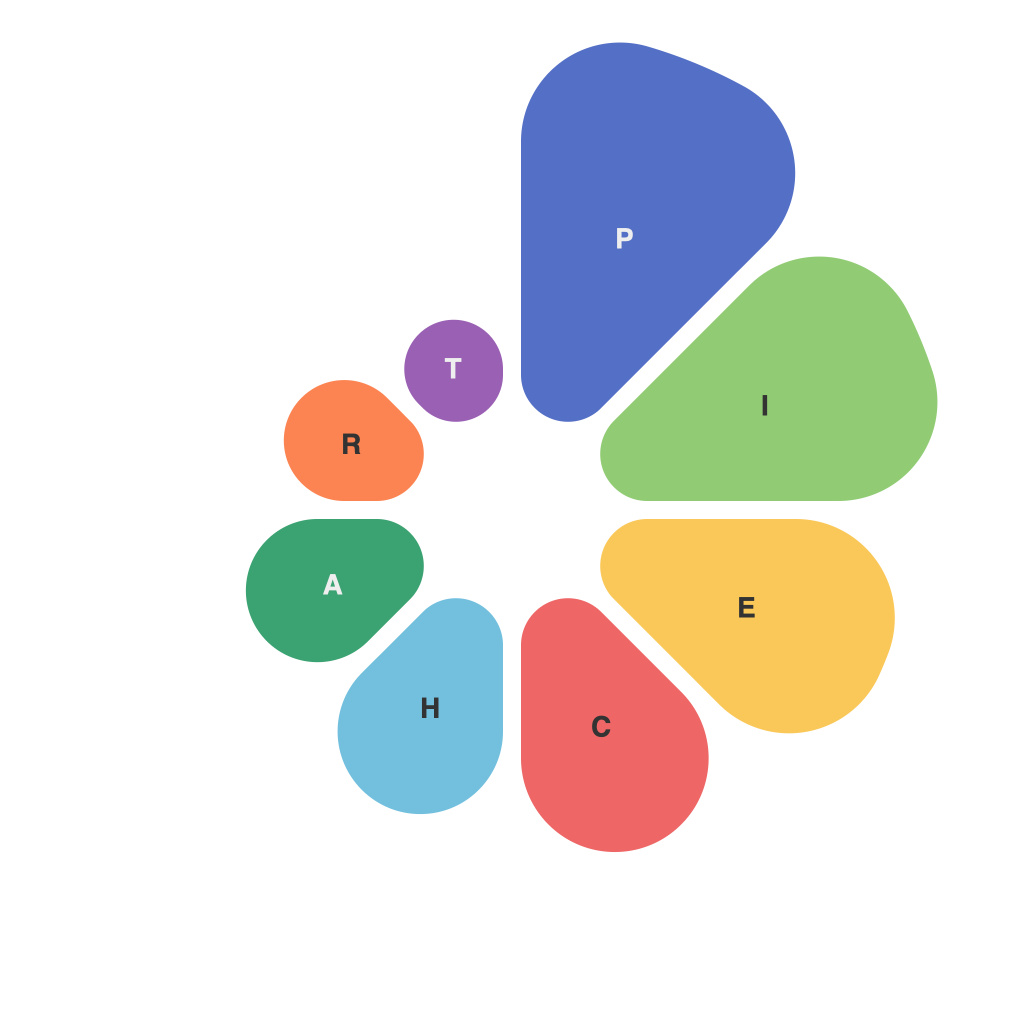
Unlocking PieChartMaster: A Comprehensive Guide to Enhancing Data Visualization with Expert Techniques and Tips
Are you looking to delve into the world of data visualization by leveraging the capabilities of PieChartMaster – a robust and versatile tool designed to help professionals and enthusiasts alike to create captivating and informative pie charts? As a leading solution for generating insightful visual representations, PieChartMaster empowers users to transform complex data into a series of appealing and understandable graphics. We’ve devised this guide filled with expert techniques and tips to help you master the art of pie chart creation and enhance your data visualization skills.
### Step 1: Understanding Your Data
Before diving into PieChartMaster, it’s crucial to understand the dataset you’re working with. Analyze the data distribution, identify key trends, and pinpoint the variables you wish to compare or visualize. This foundational step will guide your choices in using PieChartMaster effectively.
### Step 2: Choosing the Right Data Series
When using PieChartMaster, start by selecting the appropriate data series to represent as segments in your pie chart. Pay attention to the relative size and percentage of each data point to ensure they accurately reflect the proportions they should represent.
### Step 3: PieChartMaster’s Interface: A User’s Perspective
Navigating PieChartMaster’s intuitive interface can significantly simplify your pie chart creation process. Familiarize yourself with the quick guides available, understanding how to manipulate data, adjust chart aesthetics, and customize color schemes effectively.
### Step 4: Enhancing Visual Clarity
To make your pie charts more accessible and engaging, consider several enhancements:
– **Segment Sorting**: Arrange segments by size or alphabetical order for easier comprehension.
– **Tooltips**: Display detailed information about each segment when hovering over them, enhancing interactivity.
– **Color Schemes**: Use the provided palettes to distinguish between different categories, ensuring there’s enough contrast for readability, especially for those with color vision deficiencies.
– **Labeling**: Add labels to clarify the exact data each segment represents.
### Step 5: Chart Customization and Interactivity
PieChartMaster allows extensive customization, which can significantly influence your chart’s impact. Experiment with:
– **Exploding Slices**: Highlighting a segment by ‘exploding’ it away from the chart’s center, directing focus to the most significant data point.
– **3D Effects**: Adding depth can make your charts more visually appealing but be mindful of not compromising clarity for aesthetics.
– **Rotation**: Occasionally, adjusting the chart’s view can be helpful, particularly in layouts with limited space or for emphasizing certain segments.
### Step 6: Review and Feedback
After finalizing your pie chart in PieChartMaster, request feedback from colleagues or stakeholders. Perspectives from others can offer new insights and highlight areas for improvement that you might have overlooked.
### Step 7: Export and Share
Once satisfied, PieChartMaster makes outputting your pie charts effortless. Choose the appropriate format (PDF, PNG, JPEG) suitable for your audience, keeping file size in mind for sharing over email or embedding in presentations or reports.
### Conclusion:
PieChartMaster is a powerful tool for crafting compelling pie charts that effectively communicate data insights. By following these seven steps, from understanding your data to utilizing the platform’s advanced features, you can significantly enhance your data visualization skills. Remember, the key to successful chart creation lies in aligning your design choices with clear, concise, and compelling storytelling. So, dive in, explore PieChartMaster, and unleash your creativity in crafting informative pie charts that speak volumes.